« C’est génial » : Il utilise Claude pour redonner toute sa fluidité à Android TV en 20 minutes
Utiliser l’IA pour reprendre le contrôle de nos objets connectés, à commencer par le téléviseur. C’est l’idée du développeur turc Mert Cobanov, qui partage sur Internet ses découvertes. À l’arrivée, un Android TV réduit à l’essentiel, sans bloatware.
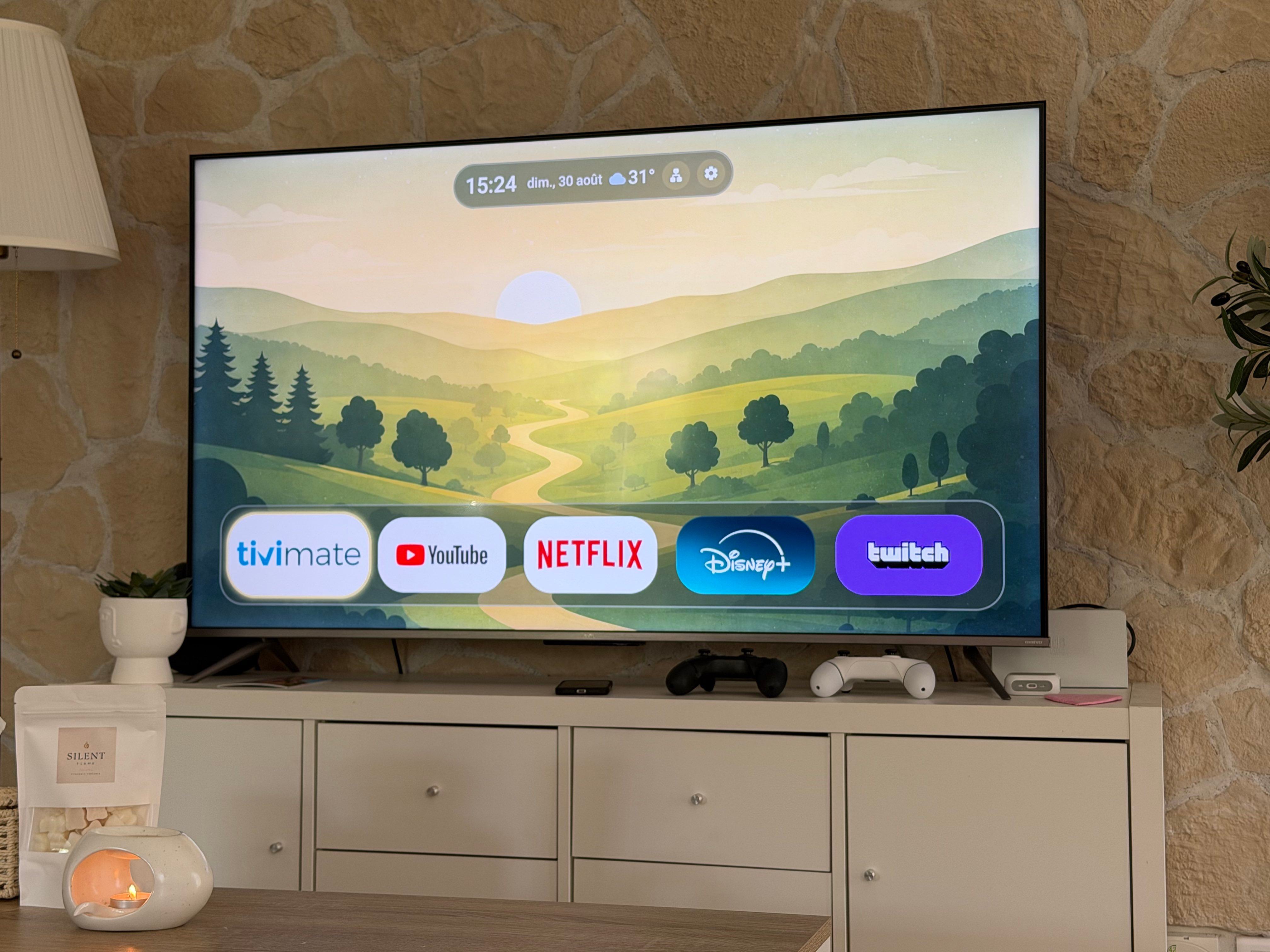
Vous avez peut-être acheté un téléviseur dont vous n’êtes pas très satisfait de l’interface logicielle. C’est peut-être Android TV ou Google TV, mais il a été largement remanié par la marque pour y installer de nombreuses applications que vous n’utilisez jamais.
Autant d’éléments superflus qui peuvent ralentir votre appareil, vous embêter au quotidien et vous sont tout simplement inutiles.
Le développeur Mert Cobanov a partagé son expérience sur les réseaux sociaux. Il démontre qu’il est possible d’utiliser Claude, ou un autre LLM, pour nettoyer sa TV en profondeur.

Lumo AI : l’assistant IA européen
L’IA générative crée du contenu en quelques secondes, mais souvent au prix de vos données personnelles. Avec Lumo AI, l’assistant européen de Proton, vos conversations restent 100 % confidentielles.
Noham sur X a suivi les instructions de Mert Cobanov et se retrouve avec un TV TCL beaucoup plus fluide.
C’est génial. Grace à cette personne j’ai retiré toutes les applications inutiles installées par défaut par TCL, et énormément de services Google qui font ramer la TV.
Plus de pub, plus de lag, plus rien, ça m’as pris 25mn au plus.
Les préparatifs
Le fonctionnement est étrangement simple. Il suffit d’activer les paramètres de développeur et le débogage, puis de se connecter à son TV depuis un PC.
Pour activer les paramètres de développeur, il faut aller dans paramètres -> Système -> À propos et appuyer sur le bouton « OK » de la télécommande à 7 reprises sur l’information « Build ».
Pour activer le debugging, il faut ensuite se rentre dans les options de développeurs dans paramètres -> Système -> Options dévelopeurs -> Debbogage USB et activer l’option, notamment si y’a un paramètre type « Deboggage sans-fil ».
Enfin, rendez-vous dans les paramètres réseaux, à la partie Status, pour prendre en note l’adresse IP de votre TV (qui commence sans doute par 192.168.).
Un simple prompt
Le développeur propose un simple Prompt pour Claude sur son site web.
Comme on peut le lire, il s’agit d’un prompt prévu surtout pour les TV TCL à l’origine, mais qui s’adapte aux autres modèles sous Android TV ou Google TV.
I want you to clean up my Android TV over ADB. The goal: get rid of the ad and recommendation rows, disable the factory apps I never use, and make the TV faster. Run the commands yourself and explain what you are doing in plain language as you go.
MY TV
- Make / model: FILL THIS IN (example: TCL Smart TV Pro)
- TV’s IP address: FILL THIS IN (TV > Settings > Network & internet > Status)
- « Developer options » and « USB debugging / Wireless debugging » are already on.
My computer and the TV are on the same network.RULES – follow these exactly
- DO NOT UNINSTALL ANYTHING. Use only
pm disable-user --user 0, so every
change can be undone withpm enable <package>.pm uninstallis forbidden.- Do not suggest or attempt rooting, unlocking the bootloader, or flashing a
custom ROM. That factory-resets the TV, and if the Widevine certificate
drops from L1 to L3 Netflix falls back to SD. There is nothing to gain.- MEASURE FIRST. Before you start, capture
dumpsys meminfo,pm list packages -sandpm list packages -dto a file. Repeat the same
measurements at the end and give me a before/after table.- WORK IN SMALL BATCHES. Disable at most 10 packages at a time, then STOP and
have me test: does the remote’s « Inputs / Source » button still work, can I
switch to HDMI, do Netflix and YouTube still open, do sound and the on-screen
keyboard still work? Do not move to the next batch until I say it is fine.- NEVER DISABLE THE FOLLOWING (these make the TV unusable):
com.tcl.suspension -> the Inputs/Source menu on the remote.
The name looks like junk but disabling it
means you can no longer switch to HDMI.
If your TV is a different brand, find that
brand’s equivalent « quick panel » package.
com.tcl.tv, com.tcl.tvinput -> HDMI / antenna input services
com.google.android.tv.remote.service,
com.tcl.tcl_bt_rcu_service,
com.tcl.autopair -> the remote control
com.google.android.gms,
com.google.android.gsf,
com.android.vending -> Play Services and the Play Store
com.android.location.fused -> disabling it sends the TV into a boot loop
.inputmethod. -> the on-screen keyboard
com.google.android.apps.tv.launcherx
-> the home screen. Disabling it before an
alternative launcher is installed leaves
you with a black screen.
For other brands, find the equivalents of this list. If you are not sure
what a package does, ask me before disabling it.- KEEP A RECORD. Write every package you disable to
kapatilanlar.txtinside
atv-debloatfolder. Keep aDEBLOAT-LOG.mdin the same folder describing
what you did, why, and the exact command to undo each change.- If something breaks, re-enable the last batch first, then narrow it down one
package at a time.DO IT IN THIS ORDER
a) Check whetheradbis installed and install it if not. Check which
operating system I am on and pick the right route: on Windows download
Google’s platform-tools package and add it to PATH, on macOSbrew install android-platform-tools, on Linuxapt install adb. Then
connect withadb connect <IP>:5555. The TV will show an « Allow debugging
from this computer? » dialog, tell me so I can approve it. On Android 11 and
above, if the TV asks for a pairing code on its « Wireless debugging » screen,
useadb pairfirst.
b) Take the measurements and list the packages.
c) Sort the packages into three groups and show me a table: (1) definitely junk:
unused streaming apps, demos, screensavers, voice assistants, setup wizards,
telemetry; (2) depends on me: ask whether I actually use them; (3) untouchable.
Get my approval and start with group 1.
d) Halve the animation speeds:
settings put global window_animation_scale 0.5
settings put global transition_animation_scale 0.5
settings put global animator_duration_scale 0.5
e) Clear caches withpm trim-caches.
f) Reboot the TV and take the measurements again.REPLACE THE HOME SCREEN
Google TV’s own home screen is full of ads and « recommended for you » rows. I
want to use FLauncher instead (it is on the Play Store, free, open source, and
shows nothing but a grid of my apps).
- First ask me to install FLauncher and confirm that it is installed.
- Have me open FLauncher once and set it as the home screen.
- Only then disable
com.google.android.apps.tv.launcherx.- Reboot the TV and confirm the home screen is still FLauncher.
WHEN YOU ARE DONE, GIVE ME
- The before/after RAM table.
- The list of packages you disabled, each with a one-line « what this was ».
- A single command that undoes everything.